Expense Tracker Website - Spend Wise
Project Overview
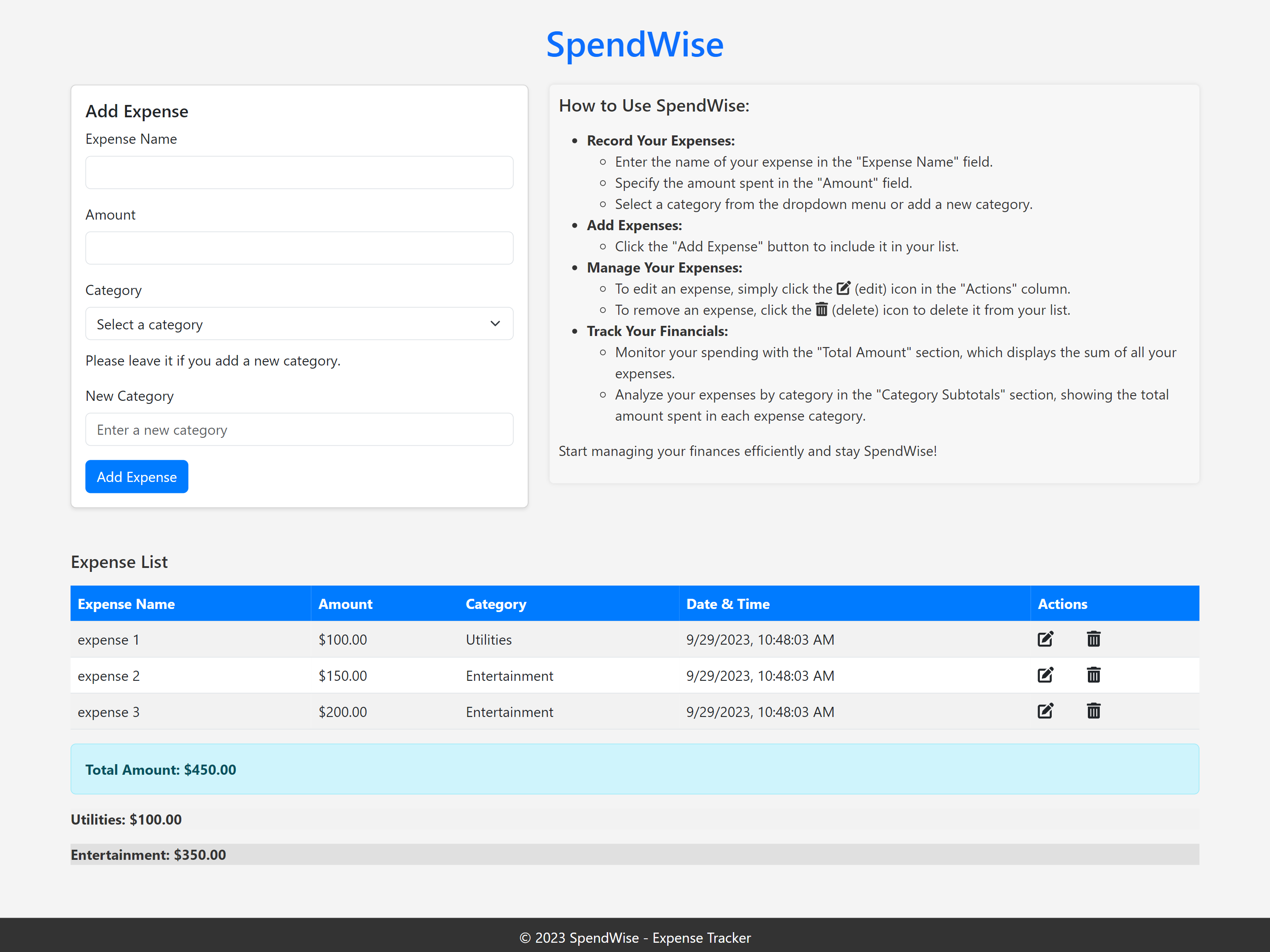
SpendWise is a web-based expense tracker designed to help users efficiently manage their finances by recording and categorizing their expenses. This application provides an easy-to-use interface for users to input their daily expenses, view their spending history, and gain insights into their spending habits.
Key Features
-
Expense Entry:
- Users can enter details of their expenses, including the expense name, amount spent, and category.
- The category can be selected from predefined options or added as a new category.
-
Expense List:
- All entered expenses are displayed in a table format, including columns for expense name, amount, category, Time and Date and actions.
- Users can easily identify and manage their expenses.
-
Expense Editing:
- Users can edit the details of any expense directly from the list.
- This feature allows users to update expense names, amounts, and categories.
-
Expense Deletion:
- Expenses can be deleted individually.
- A confirmation prompt ensures that accidental deletions are avoided.
-
Total Amount Display:
- The application calculates and displays the total amount spent by the user.
-
Category Subtotals:
- SpendWise provides category-specific subtotals, showing how much was spent in each expense category.
-
Footer::
- The application includes a footer displaying the copyright information.
Project Technologies
- HTML5
- CSS3
- JavaScript
- Bootstrap (for styling)
- Font Awesome (for icons)
User Instructions
-
Fill out the expense details:
- Enter the name of the expense in the "Expense Name" field.
- Specify the amount spent in the "Amount" field.
- Select a category from the dropdown menu or add a new category.
- Click the "Add Expense" button to add the expense to your list.
-
Manage your expenses:
- Edit an expense: Click the edit icon (pencil) in the "Actions" column to modify the details.
- Delete an expense: Click the delete icon (trash can) to remove it from the list.
-
View your financial summary:
- The "Total Amount" section displays the sum of all your expenses.
- The "Category Subtotals" section shows the total amount spent in each expense category.
Project Benefits
- Efficiently track daily expenses.
- Gain insights into spending habits.
- Stay within budget and save money.
- Easily manage and categorize expenses.
- User-friendly interface.
Project Future Enhancements
- User authentication for multiple users.
- Data persistence (saving data between sessions).
- Data visualization with charts and graphs.
- Exporting expense reports.
- Monthly or yearly expense summaries.